How to Export Webflow CMS to HTML for Static Hosting (Step-by-Step with ExFlow)
Why export Webflow CMS to HTML?
If you love building on Webflow but want faster load times, airtight security, and lower hosting costs, exporting your Webflow CMS to static HTML is a smart move. Static hosting replaces databases and servers with pre-rendered HTML, CSS, and JS—delivering speed, reliability, and control.
Common reasons creators go Webflow to static:
- Cost efficiency: Self-host instead of paying for premium hosting tiers.
- Performance: Fewer server hops and zero database calls mean blazing-fast pages.
- Security: No server-side runtime significantly reduces the attack surface.
- Flexibility: Host on your stack (S3, GitHub Pages, FTP, or even built-in hosting via ExFlow).
However, there’s a catch: Webflow’s native export doesn’t include CMS content. That’s where ExFlow shines.
The simplest path: Use ExFlow to export Webflow CMS to HTML
ExFlow.site is a Webflow exporter and downloader designed to grab your entire site—including CMS pages—and convert it to a clean static bundle. It supports Webflow, Squarespace, and Framer, and can sync directly to S3, Git, and FTP. It also offers optional hosting with unlimited bandwidth and custom domains (plan-dependent).
What you can export with ExFlow:
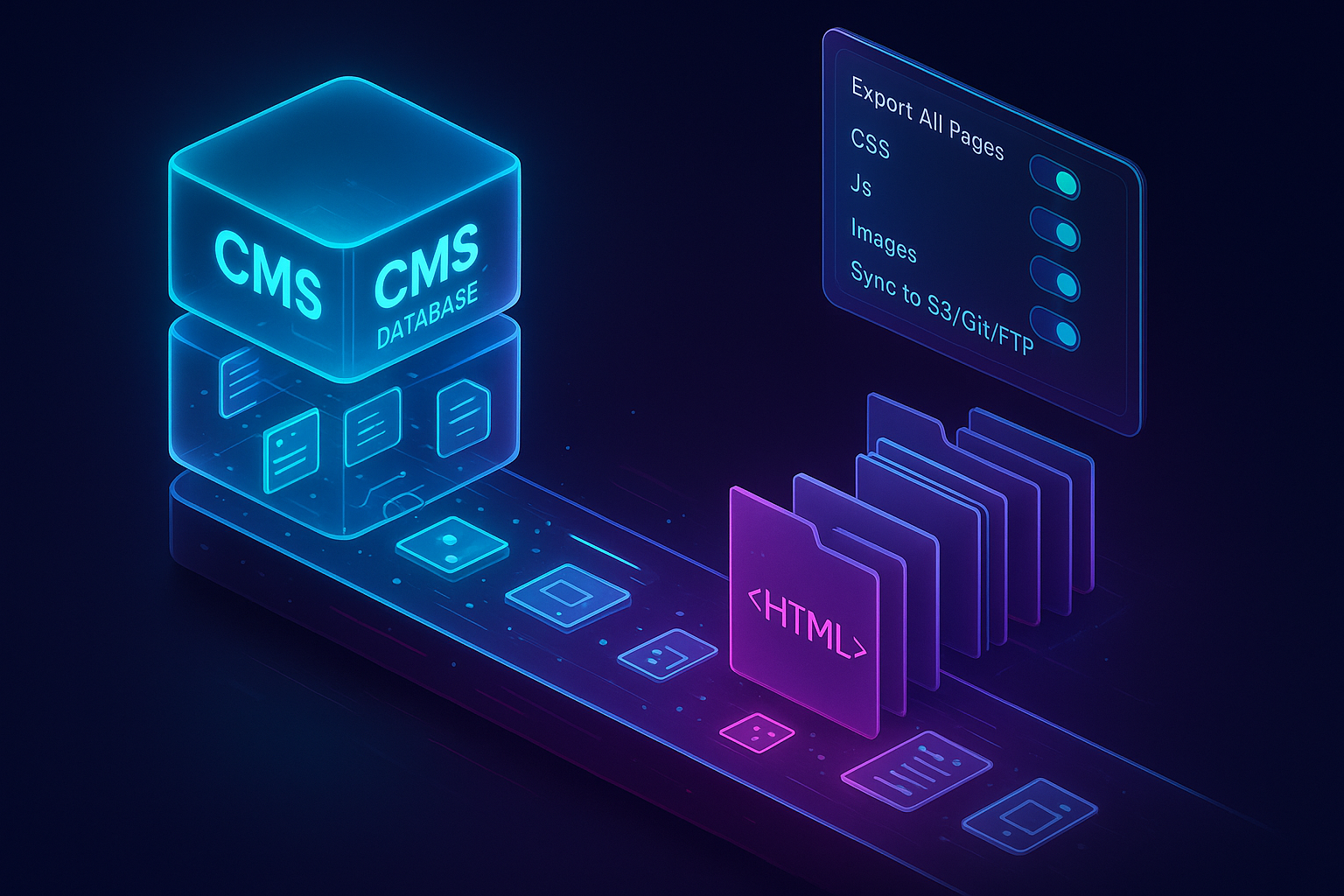
- All pages (including dynamic CMS pages)
- CSS files, JS files, images, and other media
- Clean .html pages with optional additions like custom script.js and style.css
- Option to remove the “Made with” badge
- Automated sync to Git, S3, or FTP, or one-click hosting on ExFlow

Step-by-step: Export Webflow CMS to static HTML
1) Prepare your Webflow site
- Publish your latest changes so ExFlow can capture the newest version.
- Make sure all CMS collections and item pages are publicly reachable (or linked from index pages) so they can be discovered.
- If you use pagination or filters, ensure important pages are crawlable.
2) Visit ExFlow and enter your URL
- Go to ExFlow.site and paste your Webflow domain (staging or custom domain).
3) Configure your export settings
- Enable: Export CSS Files, Export JS Files, Export Images/Media Files.
- Turn on: Export All Pages to ensure all CMS pages are included.
- Optional: Remove "Made with" badge for a white-label result.
- Optional: Add custom script.js and style.css to manage site-wide tweaks post-export.
- Choose to save pages with the .html extension for predictable static hosting.
4) Choose delivery and/or hosting
- Download a ZIP: Ideal if you’ll upload manually to your own server.
- Sync to Git, S3, or FTP: Provide credentials only if you’re ready to deploy automatically. Store sensitive credentials securely.
- Host on ExFlow: The fastest route—point a domain and go live with unlimited bandwidth.
5) Export and verify locally
- Unzip the bundle and open index.html locally.
- Click through navigation and CMS pages; confirm images, interactions, and styles load properly.
- Keep in mind: Client-side interactions and animations usually work fine, but server-side features (like Webflow Forms backend) require alternatives when static.
Where to host your static Webflow export
ExFlow Hosting (easiest)
Select hosting during export on ExFlow.site. Add a custom domain (plan-dependent). Enjoy global, fast, and simple hosting.
Amazon S3 (budget-friendly)
Create an S3 bucket and enable static website hosting.
Use ExFlow’s S3 Sync to push your files.
Set index.html and error.html; optionally front with CloudFront for CDN + HTTPS.
Git + GitHub Pages/Netlify/Vercel (developer-friendly)
Connect Git in ExFlow. Push automatically on each export.
Deploy via GitHub Pages, Netlify, or Vercel. Add redirects and headers as needed.
Traditional servers (FTP)
Provide FTP credentials in ExFlow. Files are uploaded where you need them.
Ensure correct document root and MIME types on your server.
Essential post-export checklist
- Redirects and canonical tags: Preserve SEO equity by replicating legacy URLs and 301s.
- Sitemap.xml and robots.txt: Ensure robots can discover all key pages.
- Open Graph/Twitter Cards: Confirm social share images and meta tags still resolve.
- Forms and search: Replace Webflow’s server-side features with static-friendly services:
- Forms: Formspree, Basin, or serverless functions.
- Site search: Add a client-side search library or third-party search.
- Assets optimization: Compress oversized images; consider modern formats.
- Caching and headers: If using Netlify, Vercel, or your own server, add caching rules for CSS/JS/images.
Video: See ExFlow in action
- How to Export CMS Pages on Webflow for FREE: https://www.youtube.com/watch?v=USu9ktYjFDU
- Export a Webflow Site for Free + Badge Removal (Webflow-Exporter): https://www.youtube.com/watch?v=38hVzKheSvs
Why ExFlow vs. generic site copiers?
Traditional downloaders like HTTrack often break Webflow animations, fail on dynamic content, or miss CMS routes. ExFlow is built for Webflow/Squarespace/Framer nuances, ensuring interactions, assets, and CMS-driven pages are correctly exported. That means fewer manual fixes and a faster path to production.
Common questions (quick answers)
Does this export include Webflow CMS content?
Yes. ExFlow captures CMS collection pages and item pages, outputting static .html files.
Will my animations and interactions still work?
Nearly all client-side interactions remain intact because ExFlow exports the required CSS/JS and assets. Test complex custom code after export.
Can I keep using Webflow Designer?
Absolutely. Continue designing in Webflow. When ready, export again via ExFlow.site and redeploy. With Git sync, updates can be a one-click flow.
What about forms?
Webflow’s built-in form handling is server-side. For static hosting, swap to services like Formspree or connect serverless endpoints.
Is ExFlow free?
ExFlow is free to start, with plan options for higher limits (sites, pages per export, export size, sync, and hosting).
Pro tips for a flawless Webflow-to-static workflow
- Design for static from day one: Prefer client-side logic for dynamic UI where possible.
- Ensure discoverability: Link to all key CMS pages or collections so ExFlow can export them.
- Keep libraries up to date: Minimize legacy scripts that may slow performance.
- Version your site: Use Git sync in ExFlow to track changes and roll back quickly.
- Schedule exports: If content changes regularly, align exports with your editorial calendar.
Get started now
Exporting Webflow CMS to HTML doesn’t need to be hard—or expensive. With ExFlow.site, you can download your Webflow CMS, convert it to static HTML, and self-host anywhere, from S3 to GitHub Pages—or even host directly on ExFlow with unlimited bandwidth and a custom domain.
Try the Webflow Exporter now: ExFlow.site

Comments
Post a Comment