Step by Step Guide to Syncing Etsy Listings With Facebook Shop
Are you looking to boost traffic to your Etsy shop by showcasing your products directly on Facebook and Instagram? Integrating your Etsy listings with your Facebook Shop is one of the fastest ways to get your products in front of more potential customers. This comprehensive step-by-step guide will walk you through the process of syncing your Etsy listings with your Facebook Shop using the Catalog Generator Etsy app. Let’s get started!
Why Sync Etsy Listings With Facebook & Instagram Shop?
Linking your Etsy shop directly to your Facebook and Instagram Shop increases visibility and allows you to:
- Tag products in posts and stories, letting customers shop directly from social media.
- Drive highly targeted traffic from Facebook and Instagram directly to your Etsy listings.
- Update catalogs automatically whenever you add or modify Etsy products—no more manual uploads!
- Increase engagement and conversions by making shopping seamless.
What You Need
- An Etsy shop with active listings
- A Facebook Business Manager account
- A Facebook page and Instagram business account
- The Catalog Generator Etsy app
Step 1: Set Up Your Facebook Business Manager
If you haven’t yet, head over to business.facebook.com to create your Facebook Business Manager account. Ensure your Facebook Page and Instagram account are linked to this Business Manager. This is essential for running shops across both platforms.
Step 2: Verify Your Etsy Domain in Facebook
- Navigate to Business Settings → Brand Safety → Domains.
- Click Add and enter your Etsy shop’s domain (format:
yourshopname.etsy.com). - Copy the verification Meta tag provided by Facebook.
- In your Etsy Shop Manager, go to Settings → Facebook Shops and paste the Meta tag.
- Return to Facebook Business Manager and click Verify.
This step tells Facebook that you’re authorized to link your shop domain to their commerce system.
Step 3: Install the Catalog Generator Etsy App
- Visit the Catalog Generator website.
- Sign up for an account and connect your Etsy shop.
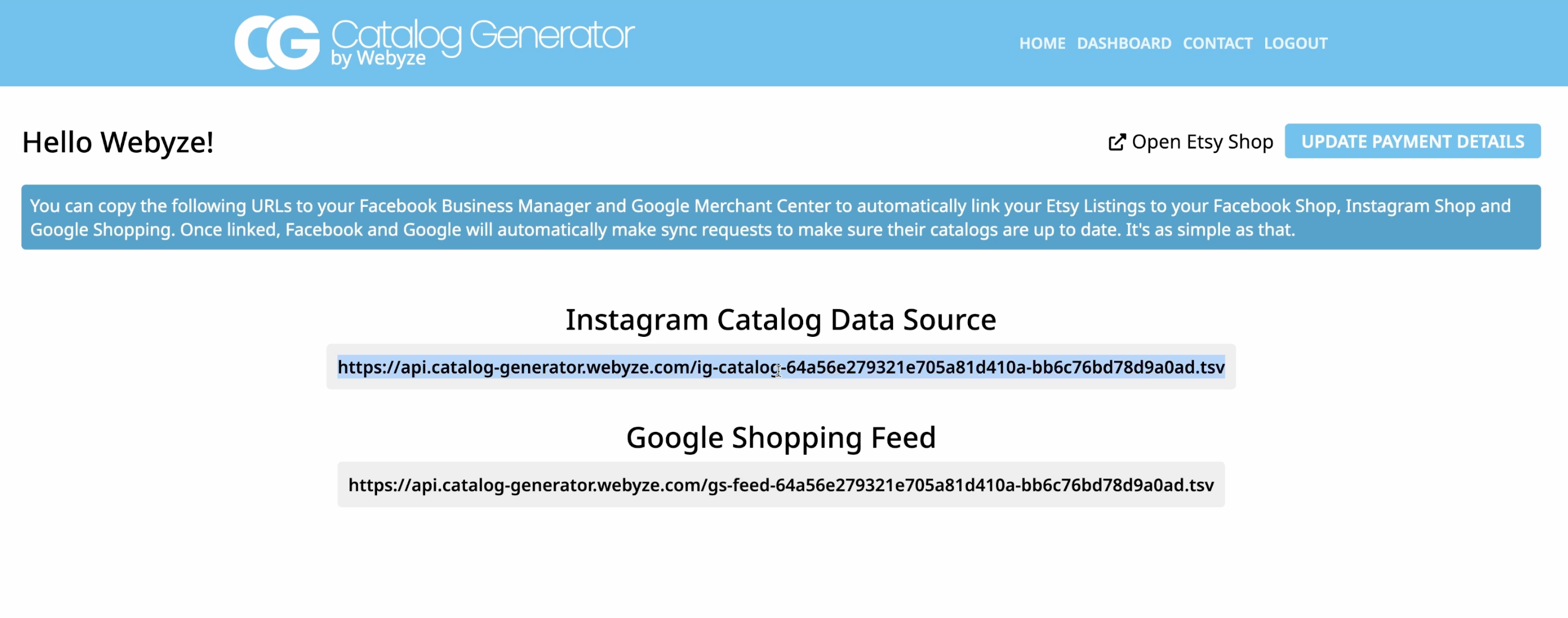
- The app will generate a unique Catalog Data Feed URL for your shop listings.
Step 4: Set Up Your Catalog in Facebook Commerce Manager
- Go to the Facebook Commerce Manager.
- Create a new account if necessary, or open your existing shop.
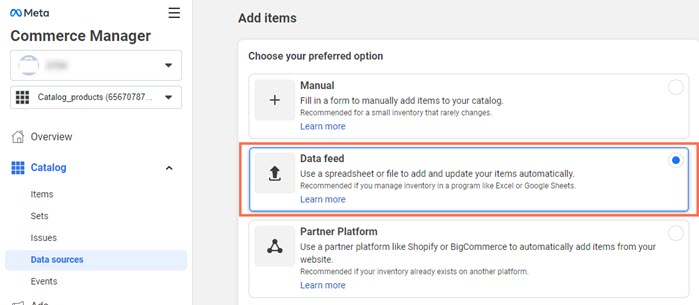
- Inside the Commerce Manager, navigate to Catalog → Data Sources.
- Click Add Items and select Data Feed.
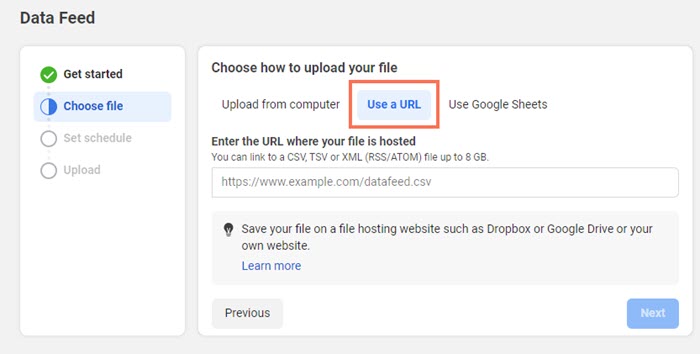
- Choose "Use a URL" for your feed source (so listings stay updated automatically). Paste the Catalog Generator URL here.
- Specify your update schedule (daily updates recommended).
Step 5: Submit Domain For Approval and Start Tagging Products
- In Commerce Manager, go to Settings → Catalog.
- Under Unnot Submitted, submit your Etsy domain for approval.
- Once approved, you can start tagging your Etsy products in Facebook and Instagram posts, stories, and your shop tabs.
Watch the Step-by-Step Video Tutorial
Need a visual walkthrough? Watch the full setup guide here:
Pricing and Free Trial
The Catalog Generator Etsy app costs just $5/month and comes with a 7-day free trial. Test it risk-free—cancel anytime if it doesn't fit your needs.
Tips and Best Practices
- Always keep your Facebook and Instagram pages in sync by scheduling daily updates via the Catalog Generator feed.
- Switch your Instagram account to a Business Profile to enable shopping features (it’s free!).
- Leverage product tags in posts and stories to drive direct conversions.
- Respond quickly to customer inquiries on social media for the best results.
Conclusion
Syncing your Etsy listings with your Facebook Shop doesn’t have to be complicated. The Catalog Generator app makes the process nearly automatic, saving you hours of manual setup and ensuring that your latest products are always visible to your social audiences.
Start your free trial today and transform your Etsy marketing strategy by connecting directly with shoppers on Facebook and Instagram.
If you have any questions or need help with the setup, contact the Catalog Generator support team—they’re ready to help you succeed!

Comments
Post a Comment