Ecommerce Background Removal Best Practices For Clean White Product Images
Clean white background product images are the gold standard for ecommerce. They load fast, look consistent, and keep attention on what matters: your product. Whether you sell apparel, cosmetics, home decor, or gadgets, nailing background removal is one of the simplest ways to improve conversion, reduce returns, and build brand trust.
In this guide, you’ll learn the best practices for ecommerce background removal—plus a fast, AI-powered workflow to create pixel-perfect white background photos in minutes with Supra AI Photo Studio.
Why clean white background images work
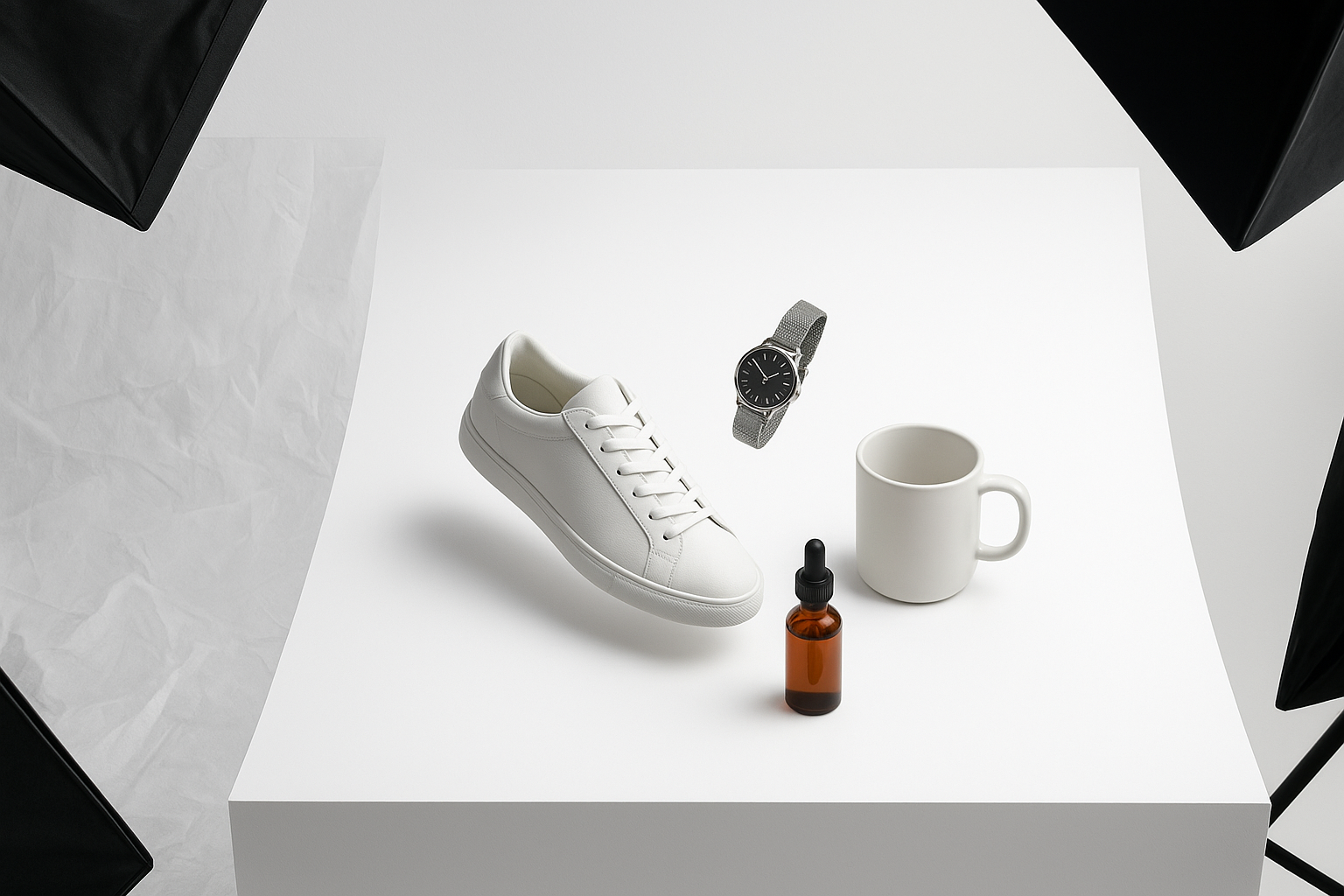
- Clarity and focus: White removes distractions so shoppers evaluate shape, color, and features quickly.
- Consistency across the catalog: Uniformity builds trust and makes comparison easier.
- Better marketplace compliance: Many marketplaces prefer or require pure white backgrounds.
- Smaller file sizes: Clean whites compress better, improving page speed and SEO.
What “clean white” actually means
- Pure white (#FFFFFF): Avoid gray casts and gradients. The background should be uniform.
- Crisp edges: No halos, fringing, or jagged pixels. Edges should feel natural, not cut-and-paste.
- Realistic grounding: A subtle contact shadow or reflection helps products feel real instead of floating.
- Consistent framing: Similar padding, angle, and scale across all products.
Pre-edit capture tips for easier background removal
- Use diffused light: Softboxes, a light tent, or indirect window light reduce harsh shadows.
- Separate subject from background: Distance your product from any backdrop to avoid color spill.
- Shoot slightly over-sized: Give room to crop later. Keep the product fully in frame.
- Stabilize: Tripod + timer/remote to prevent blur. Lower ISO to reduce noise.
- White balance: Use a gray card or set a consistent Kelvin temperature so colors stay accurate.
The background removal workflow (step-by-step) 1) Isolate the product
- Remove the background cleanly to pure white. If keeping transparency for templates, export as PNG; otherwise, place over #FFFFFF and export as JPEG or WebP.
2) Perfect the edges
- Zoom in 200–400%. Clean halos around hair, fabric edges, and glass. Feather lightly (0.2–0.5 px) if needed for natural transitions.
3) Add realistic grounding
- Use a soft, elliptical shadow directly beneath the product. Keep opacity low (10–20%) and blur wide. Reflections can also work for glossy products—keep them subtle.
4) Correct color and contrast
- Ensure accurate hues. Adjust exposure, whites, and blacks to maintain detail without clipping.
5) Crop and align consistently
- Maintain consistent padding around the product (typically 5–10% margin).
- Use the same aspect ratio across the catalog (e.g., 1:1 or 4:5) for neat grid layouts.
6) Export for the web
- Resolution: At least 2048 px on the longest side for zoom-friendly product pages.
- Format: JPEG or WebP for photos; PNG for transparency. Use sensible compression to balance quality and speed.
- Alt text: Add descriptive, keyword-informed alt text for accessibility and SEO.
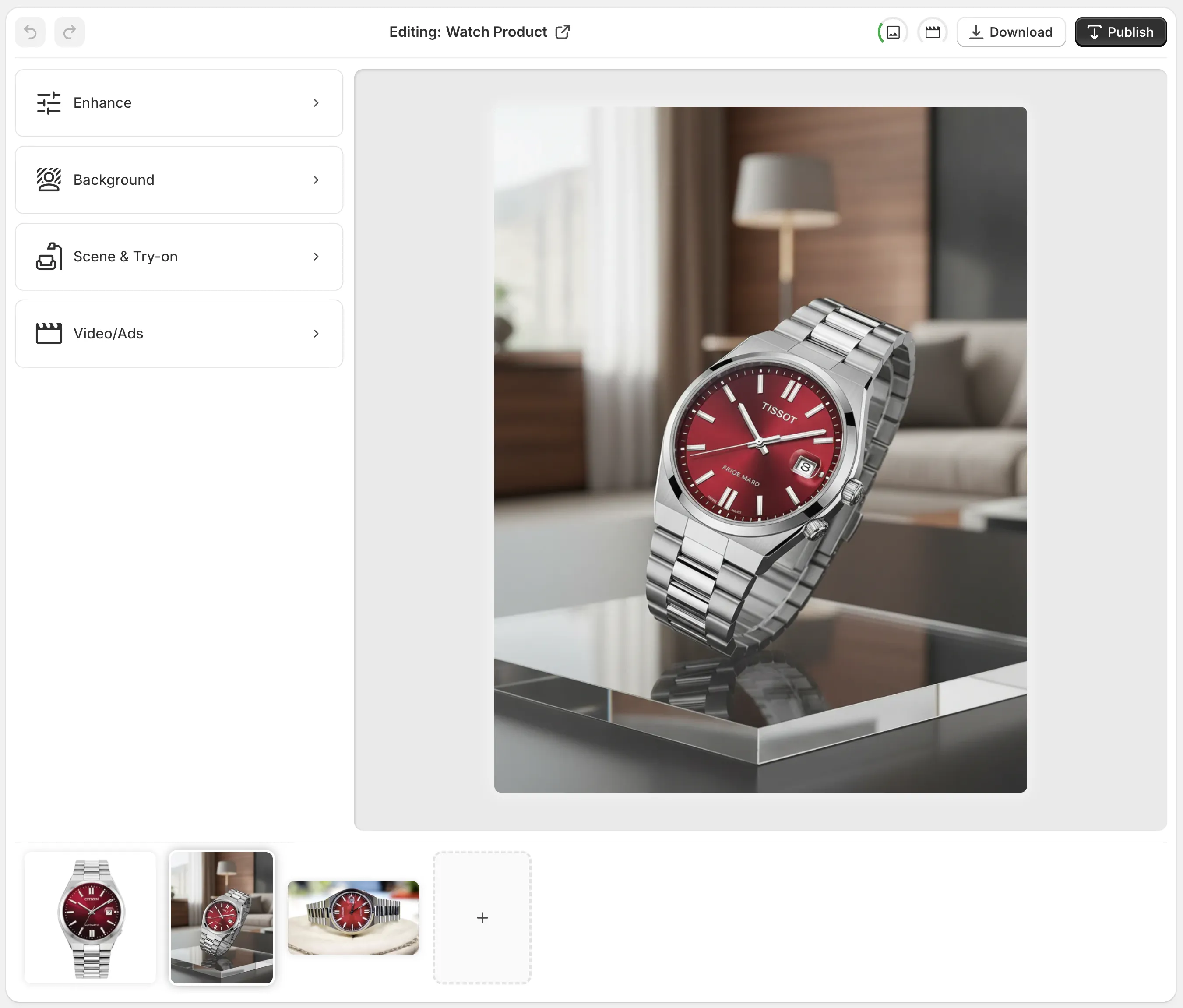
Do it in minutes with Supra AI Photo Studio If you’re tired of pixel-pushing, automate the heavy lifting with AI.
- Background remover: Instantly isolate the product and replace with pure white.
- Auto enhance: Fix lighting, contrast, and color with one click.
- Upscaling: Restore sharpness so your zooms look clean and crisp.
- Object placement: If you want both white background and lifestyle options, place the same cutout into on-brand scenes.
- UGC/B‑roll video: Turn winning white-background images into short ad-ready clips.
Install Supra AI Photo Studio: https://apps.shopify.com/supra-ai-photo-studio Explore the features: https://supra-ai-photo-studio.sktch.io/
How to create clean white images with Supra AI Photo Studio 1) Upload or select a product image in the app
- From your Shopify admin, open the app, select the product, and choose the image to edit.
2) Use Isolate Product (Background Remover)
- One click removes the background and places your product on #FFFFFF.
3) Auto Enhance and Upscale
- Apply denoise, deblur, and lighting correction. Upscale if the source image is small.
4) Add a subtle shadow
- Choose a soft contact shadow preset for realism. Keep it minimal to avoid a “floating” look.
5) Crop and export
- Apply a consistent aspect ratio (e.g., square for collections, 4:5 for PDP). Export as JPEG/WebP with high quality for crisp results.
Pro tips for flawless results
- Watch your whites: If the background isn’t truly #FFFFFF, it can look dull or patchy. Use a levels or curves adjustment to push the background to pure white—without crushing product highlights.
- Control reflections and glass: For glossy items, remove distracting environment reflections during capture. In post, keep reflections gentle and symmetrical.
- Mind color cast: Metals and whites can pick up color spill from nearby objects. Neutralize with temperature/tint sliders.
- Keep textures intact: Don’t over-smooth. Fine texture in fabric, leather, or wood signals quality.
- Batch consistency: Create reusable presets or styles for padding, shadow strength, and exposure.
Common mistakes to avoid
- Cutout halos: Feather too much and edges go blurry; feather too little and you’ll see jagged pixels. Inspect at 200%.
- Floating products: No shadow looks fake. Add a soft contact shadow to ground the product.
- Inconsistent cropping: Random padding makes grids look messy and unprofessional.
- Oversaturated colors: Punchy is good; neon is not. Keep brand-accurate color.
- Heavy compression: Over-compressed images show blocky artifacts and fringing on edges.
White background vs. lifestyle images
- White background photos are perfect for catalogs, quick comparison, and marketplace compliance.
- Lifestyle images provide context, scale, and emotional resonance (great for ads and PDP galleries). With Supra AI Photo Studio, you can create both from a single source image: start with a clean cutout for white, then use Object Placement to drop the product into kitchens, offices, boutiques, or nature scenes—while keeping colors and details accurate.
If you want to explore contextual imagery too, check out this feature preview: https://apps.shopify.com/supra-ai-photo-studio
Quick launch checklist
- Source image is sharp, well lit, and high-resolution
- Background removed to pure #FFFFFF
- Edges inspected at 200–400%
- Subtle contact shadow applied
- Color and exposure corrected (no clipping)
- Cropping and padding standardized across SKUs
- Exported as JPEG/WebP (PNG only if you need transparency)
- Descriptive alt text added (include product type, material, color)
Turn every product into a best-seller image Clean white product photos reduce friction and boost confidence. With the right workflow—and the right tool—you can ship a consistent, conversion-optimized catalog fast. Let AI handle the tedious work while you focus on growth.
Get started free: https://apps.shopify.com/supra-ai-photo-studio Learn more about features and pricing: https://supra-ai-photo-studio.sktch.io/

Comments
Post a Comment