How to Audit Shopify Size Chart Coverage Before Your Next Collection Drop
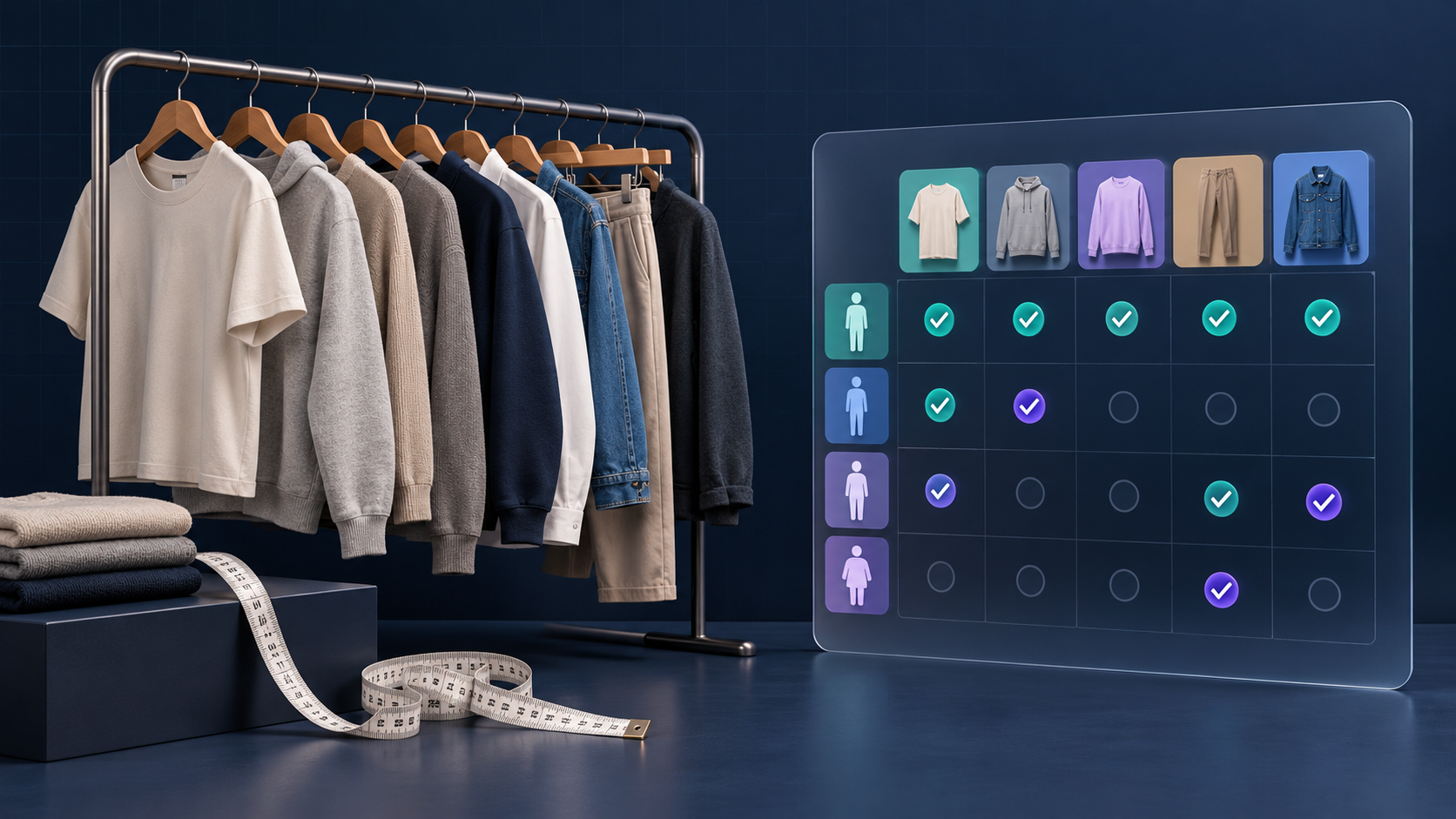
Launching a new apparel collection is the moment when size-chart gaps become expensive. A product can have polished photos, correct inventory, and a good description, yet still create returns and support tickets because its sizing guidance is missing, copied from the wrong fit, or too vague to use. The practical answer is to audit coverage before the collection is visible—not after customers start asking questions.
A Shopify size-chart audit is not a design exercise. It is a quick catalog-control workflow: identify every product that needs sizing help, group products that genuinely share measurements, check the shopper-facing explanation, and make sure the rule will still cover products added next week.
Start With a List of Products That Need Sizing Help
Export or filter the collection you are about to launch, then mark each item as one of three groups: needs a chart, can share a chart, or needs an exception. Apparel, footwear, fitted accessories, and equipment with dimensions usually belong in the first group. A one-size tote may only need a short dimensions note. A fitted blazer should not quietly inherit the same table as a relaxed sweatshirt.
The useful question is not “does this product have a size chart?” It is “would a shopper know which option to choose after seeing this product page?” If the answer is no, it belongs on the audit list.
For each product, capture a few operational fields: product type, collection, vendor, fit family, available sizes, measurement method, and whether it needs centimetres and inches. That small worksheet exposes the usual holes: an item is in the collection but has no guidance; a new size range was added; or a product changed from regular to oversized fit without its chart changing.
If you are setting up a starting point for newly created products, this companion guide on adding a default Shopify size chart is a good baseline. A default is a safety net, though—not a substitute for auditing important exceptions.

Group by Fit Logic, Not by Convenience
The fastest way to create bad coverage is to reuse one chart because two products happen to use the same S–XL labels. Labels are not measurements. A cropped tee, a standard tee, and a relaxed tee can all have different garment measurements and different shopper expectations.
Create a shared chart only when the products use the same sizing logic. For example, a core cotton tee family may share a chart if its cut and grading are genuinely consistent. A tailored shirt, a compression layer, or a shoe should become a separate chart or a clear exception. This keeps the number of charts manageable without pretending every Medium means the same thing.
A helpful test is: if a product manager changed the product title and photos, would the same measurements and fitting notes still be accurate? If yes, a shared chart is plausible. If no, split it. For a fuller way to organize that work, see how to split Shopify size charts by fit family.
Check the Product Page as a Shopper Would
Next, open a sample product from every fit family in a real storefront preview. You are checking more than whether a table appears. Confirm that the chart is close enough to the size selector to be noticed, the display works on mobile, and the labels explain what is being measured.
A chart should state whether numbers describe the garment or the body. That distinction prevents the most avoidable sizing confusion. For an illustrative shirt chart, “chest width measured flat” is much more useful than a bare “chest” column. If shoppers need to take their own measurements, pair the grid with a simple measurement guide: where to place the tape, whether to measure flat, and how to handle the conversion.
This is also the right place to make a deliberate display choice. An inline chart is easy to scan, an accordion preserves a compact page, and a modal can work when the table needs room. The best choice is the one shoppers can find without interrupting their decision. The same reader-first planning applies to Shopify product tabs: put information where it answers a real question, not merely where the theme has an empty slot.
Turn Manual Checks Into Assignment Rules
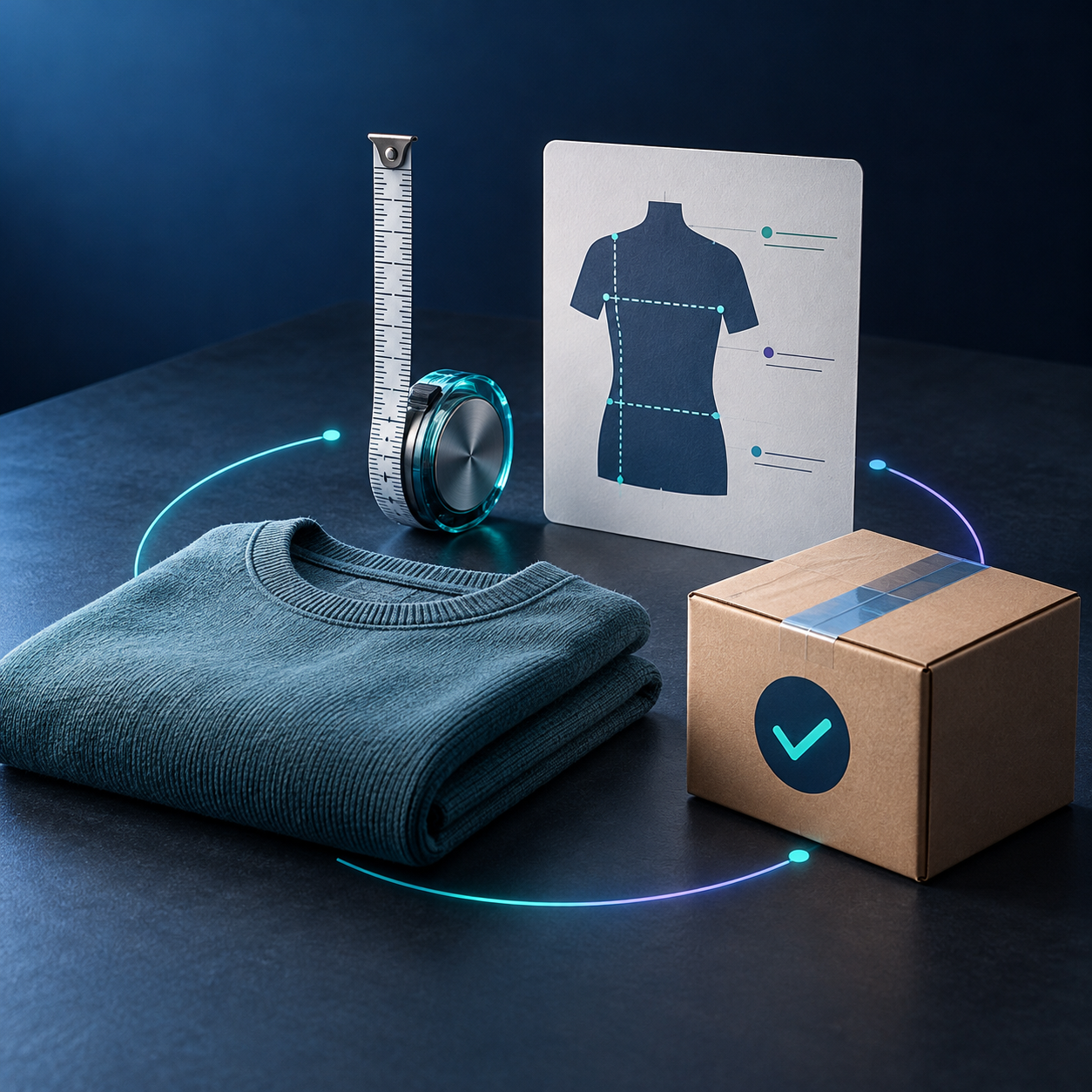
Once the audit has revealed your fit families, avoid maintaining coverage product by product. That approach works for a five-SKU launch and fails quietly when the catalog grows. Instead, assign a chart by the most stable property you have: a collection, product type, vendor, tag, or individual product for a true exception.
For instance, a “Core Tees” collection can receive one chart rule, while a “Tailored” tag routes items to a different chart. The important part is that the property means something operationally. Do not use a temporary campaign tag if it will disappear after launch. Do not use a collection that mixes unisex hoodies with slim-fit shirts only because they are both on sale.
Supra Size Chart is useful here because its central spreadsheet-style charts can be assigned with product, collection, product-type, vendor, or tag rules, and the most specific match wins over the fallback. The theme app block then renders the matching chart as an inline table, accordion, or modal. That lets a new qualifying product inherit the intended guidance instead of waiting for someone to paste another HTML table.
Rule quality matters beyond sizing, too. If your store uses color variants, the same discipline behind Shopify swatch rules for multi-color products helps: make the catalog attribute mean one thing, then let the storefront behavior follow it consistently.
Verify Units, Notes, and Ownership
Before you sign off, run these final checks:
- Every fit family has a chart or an intentional reason it does not need one.
- Column headings say what is measured and use a consistent unit.
- International shoppers can use a metric/imperial option where it is relevant.
- Measurement notes match the actual product, not an old template.
- A product that matches two rules resolves to the intended, more-specific chart.
- A new product added to a covered collection will inherit the right guidance.
- The source data can be exported before a major catalog or theme change.
That final ownership check is easy to skip. Size guidance is store data, not decorative product copy. Supra Size Chart stores charts as Shopify metaobjects and supports CSV and JSON import/export, so the information can move with the store rather than being trapped in a pasted description or a separate widget.

Make the Audit a Pre-Launch Habit
A good size-chart audit takes less time than cleaning up size-related tickets after launch. Put it beside inventory checks, variant review, and product-page QA whenever a new apparel, footwear, accessory, or equipment collection goes live. Start with one representative product from each fit family, then spot-check the exceptions.
If you are still pasting tables into descriptions, begin by creating one reusable chart for the most stable product family and assign it with a rule. You can install Supra Size Chart from the Shopify App Store for free, then add the theme block and expand coverage from that controlled starting point. The next action is simple: pick the collection you plan to launch next and find the first product whose size guidance would make a shopper hesitate.

Comments
Post a Comment