How to Build Reusable Product Image Templates Without Losing the Original
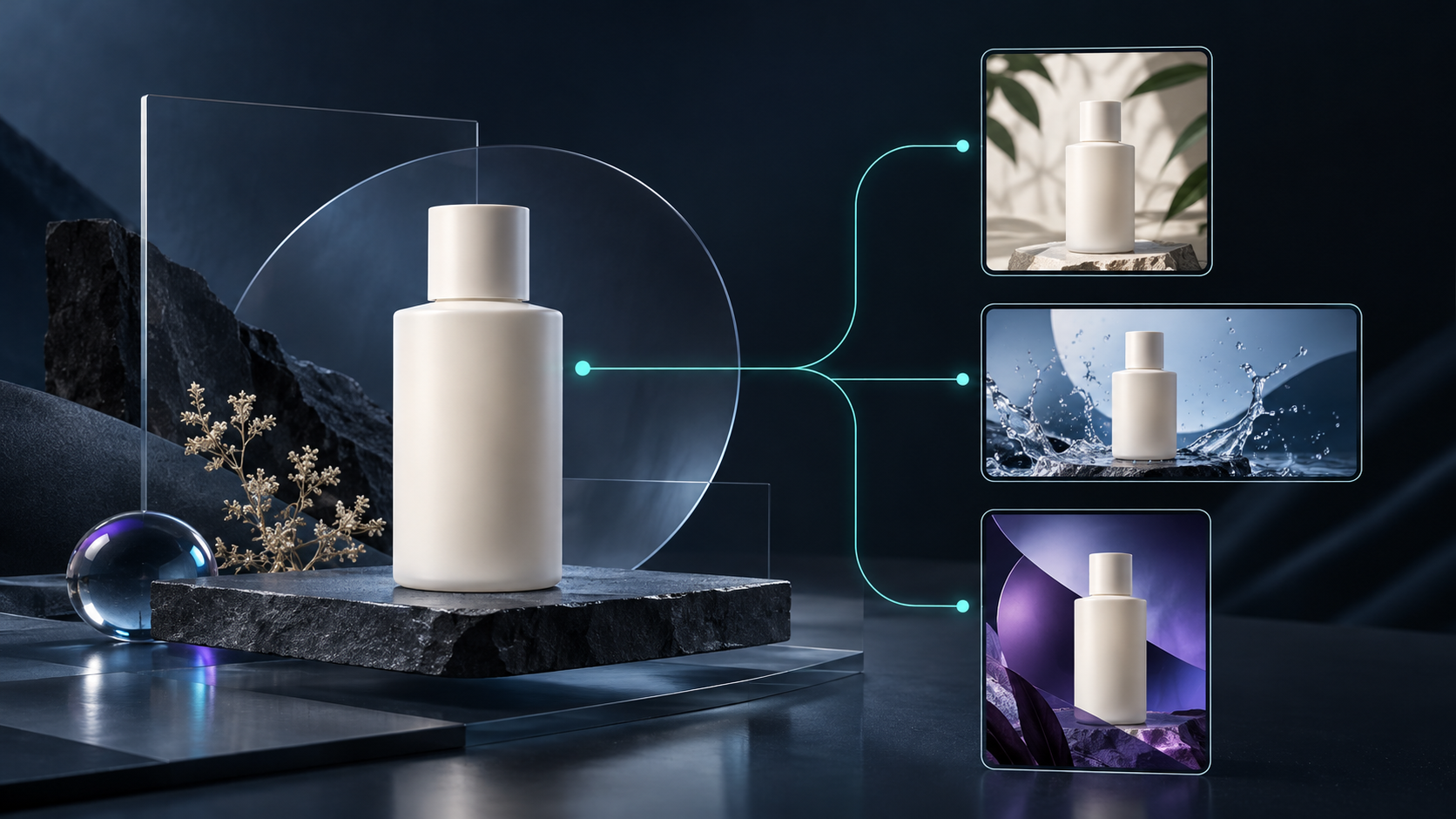
# How to Build Reusable Product Image Templates Without Losing the Original
Creating a new product image for every campaign is slow. Recreating the same crop, shadow, type treatment, and export settings also makes small teams surprisingly inconsistent. The practical answer is not to force every asset through one rigid layout. It is to create one protected, editable master and a small set of deliberate variants.
That approach gives you speed without losing the source image you will need next month. A browser editor such as ImageFlow is useful here because it gives you layers, masks, adjustment layers, smart objects, and PSD/PSB import and export in an editable working document. Ordinary editing and its listed on-device AI tools stay in the browser, but that does not remove the need to follow your own company’s data rules.
Start With a Master That Is Not a Deliverable
Your master is the file that protects the product truth. It is not the square Instagram crop, the email header, or the marketplace image. It should contain the highest-quality original you are allowed to use, the cleanest practical product cutout, and the decisions that make later changes reversible.
For a typical ecommerce item, I make the master include:
- the untouched source photo on a locked bottom layer;
- a working product layer with a non-destructive mask rather than deleted pixels;
- adjustment layers for exposure, white balance, and contrast;
- a neutral background or sweep on its own layer; and
- a notes layer or group naming convention that explains what may change.
This is slower by a few minutes on the first asset and faster on every asset after it. It also makes it easier to answer the important question: did we change the presentation, or did we accidentally change the product?
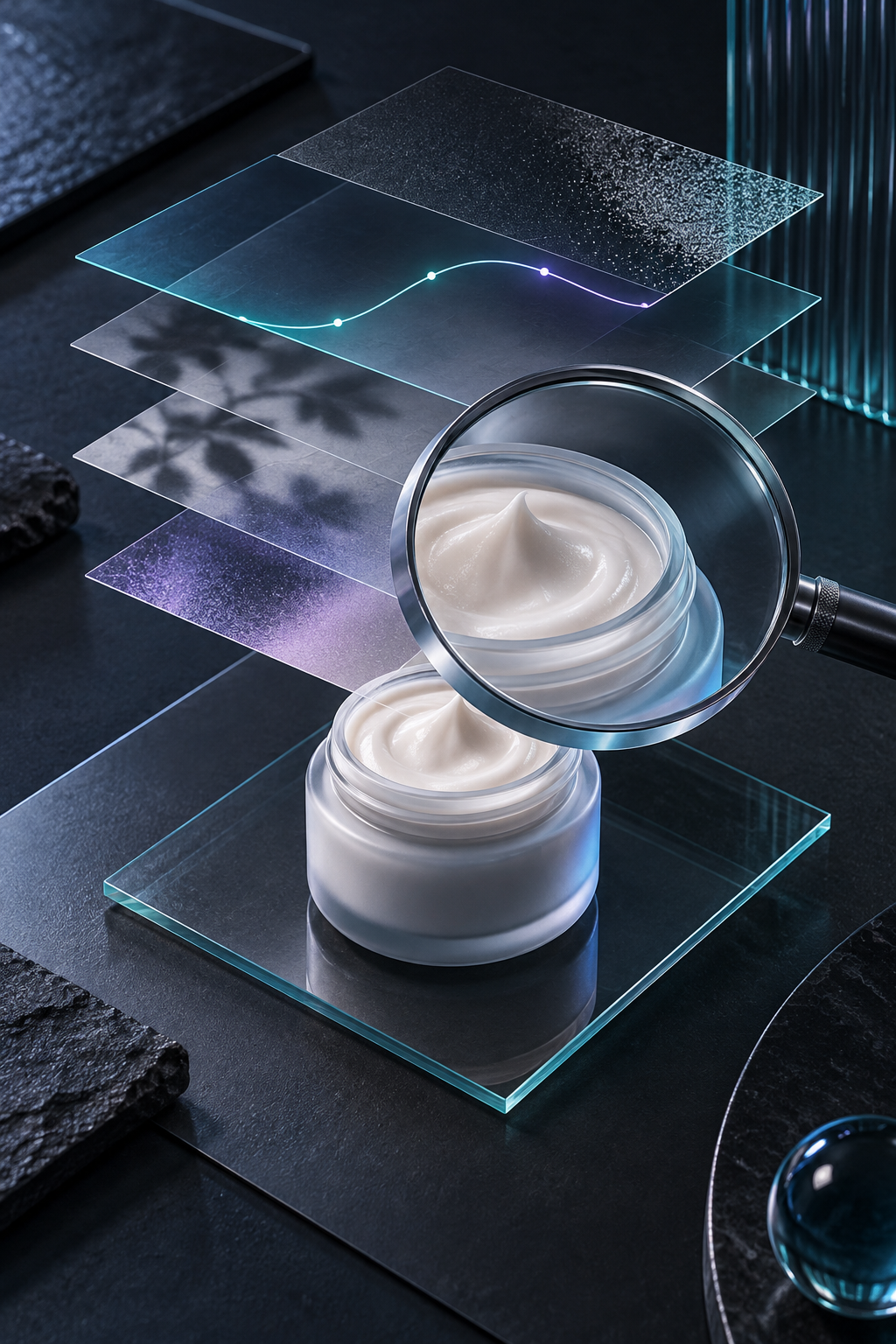
Use masks before you erase
If a product needs a cleaner edge, select it and use a layer mask. If a reflection, loose thread, or background distraction needs attention, make the smallest useful change, then inspect it at 100%. ImageFlow lists object selection, on-device background removal, content-aware fill, masks, and adjustment layers among its browser tools. Those features are useful starts, not a reason to skip review. Fine hair, transparent packaging, shiny surfaces, labels, and small accessories can expose a rough mask immediately.
The same restraint matters when you need a cleanup pass. A workflow like cleaning a product photo without changing it is a good standard: remove distractions, but do not alter color, dimensions, included components, or material claims.
Define Template Families by Job, Not Channel Names
A file named `final-final-email-v7` is not a template system. Instead, decide what each output must help a customer do. Most teams can begin with three families:
1. Product-detail template: room for the item, its edge detail, and accurate color.
2. Campaign template: room for a short message or promotion, while the product remains recognizable.
3. Collection template: a consistent crop that helps a shopper scan related items quickly.
Each family can have multiple dimensions, but it should have one repeatable logic. For example, the collection template might always leave the product centered with a fixed safe margin; the campaign template might reserve one side for copy; the detail template might never crop through a label or key feature.
That distinction avoids the common failure mode of squeezing one composition into every ratio. If your product image plan also includes AI-generated lifestyle scenes, keep the roles separate. This guide to using AI product photos on Shopify collection pages makes the same useful point: browse images, context images, and detail images have different jobs.

Build Variants With Smart, Swappable Parts
Open the master, then make a copy for a template family. Keep the product group intact. Put background, shadow, text, badges, and crop guides in separate groups. Where the artwork is reused, a smart object can keep that part editable instead of baking it into pixels.
Here is a simple production sequence:
1. Duplicate the master and rename it by job and size, such as `collection-square` or `email-landscape`.
2. Change the canvas or crop frame first, before moving the product.
3. Reposition the product until its key identifying details remain visible.
4. Turn on only the needed background, shadow, and text groups.
5. Export a delivery copy; do not overwrite the master.
This process is deliberately boring. Boring is good when the request arrives late and three channels need assets by tomorrow. It also gives someone else a comprehensible file instead of a flattened mystery. For a related handoff discipline, see six checks before returning an edited PSD.
Add a Two-Minute Export Check
A template only saves time if its output is safe to publish. Before you send an image to a storefront, ad platform, or teammate, check these three things:
- Truth: labels, color, texture, accessories, and proportions still match the real item.
- Edges: masks are clean around transparent materials, shadows, handles, and small type.
- Context: the crop still works at the size customers will actually see.
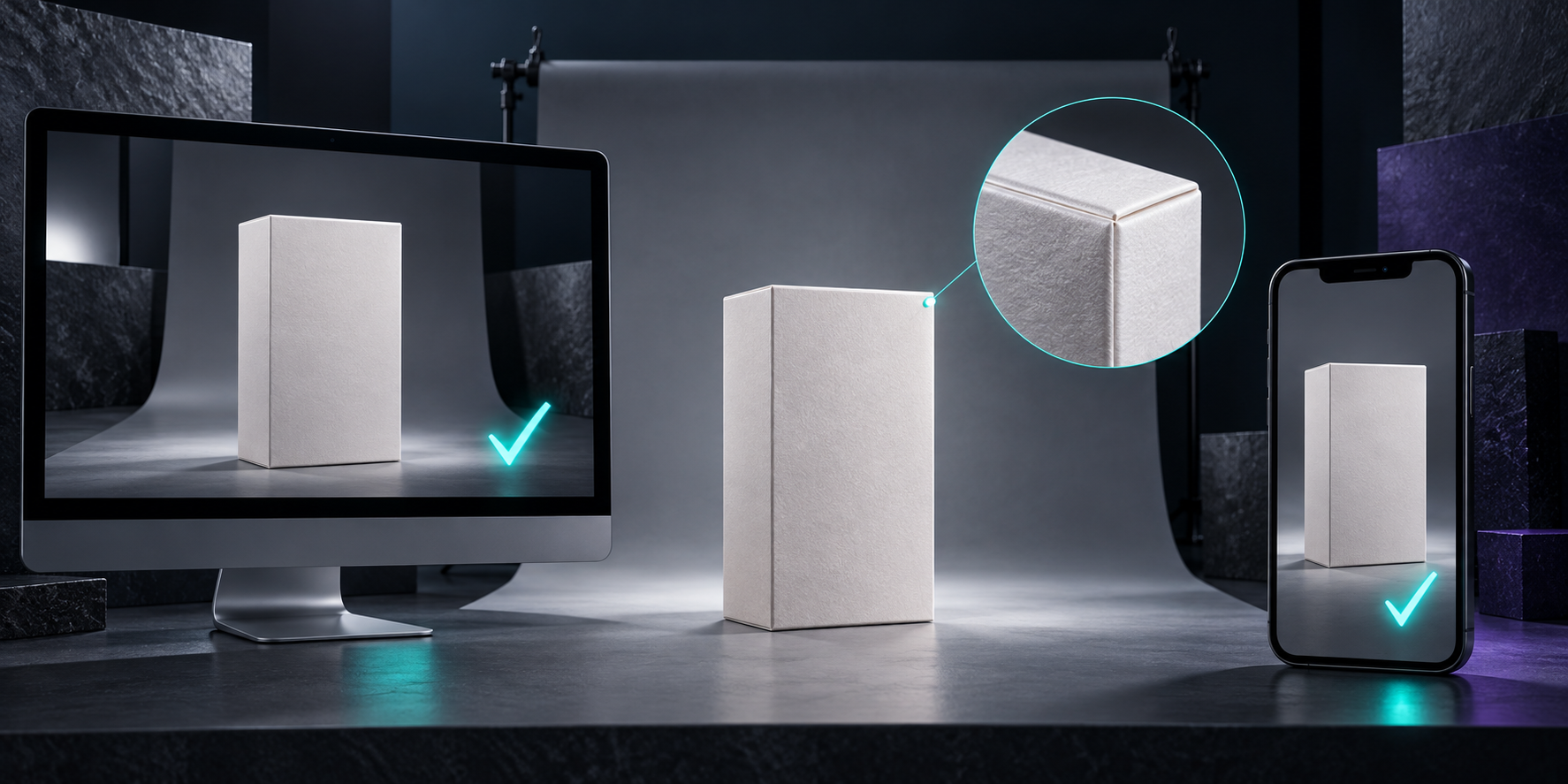
Review one full-size view and one small, real-world view. An attractive desktop file can hide a cut-off product edge or illegible detail once it becomes a phone-sized collection tile. If you are preparing several optimized delivery formats, this browser-based product-image preparation workflow is a helpful complement: keep the source master separate from resized or compressed copies.
Keep the Template Small Enough to Use
Do not start with 20 layouts. Begin with the three image jobs you repeat most often, then improve the system only after a real campaign reveals a gap. Track the recurring edits: is it usually a new crop, a new background, a product swap, or a text-safe area? That pattern tells you which part deserves a reusable layer group.
A browser-based, editable workflow is especially useful when you need to open a shared PSD, make a controlled adjustment, and return an export without setting up a desktop workstation. ImageFlow is a capable Photoshop alternative for the listed layer, mask, smart-object, and export tasks, but test a complex production file before making it your only round-trip path.
The Next Useful Step
Open ImageFlow with one real product image and build a single protected master today. Make one square and one wide variant from it, then compare the exports at the sizes your customers use. If the product still looks accurate and the working file is easy to understand tomorrow, you have the beginning of a template system worth repeating.

Comments
Post a Comment