How to Download a Framer Site as HTML and Self-Host It

Why Download a Framer Site as HTML?
If you like Framer for design but want more control over the final site, exporting to static HTML is the practical move. ExFlow.site is built for that workflow: type in a Framer URL, choose what to export, and get a static package you can download or sync to your own hosting.

That gives you a clean exit path when you want to keep a site portable, back it up, move it to cheaper hosting, or extend it with custom code outside the Framer editor. It also helps when you need a downloadable copy of the site instead of depending only on the hosted version.
What ExFlow Can Export From Framer
ExFlow focuses on the parts that matter for a static handoff. The export can include the site URL, CSS files, JavaScript files, images, media assets, and every page. You can also choose to remove the Made with Framer badge, add custom style.css and script.js files, and sync the result to Git, S3, or FTP.
- Export a Framer site by typing its URL.
- Export CSS, JS, images, and media files.
- Export all pages and keep them as
.htmlfiles. - Add custom
script.jsandstyle.cssfiles. - Sync to Git, S3, or FTP when you want the export pushed directly to a destination.
- Host the exported site on ExFlow and link a custom domain if that is the simpler path.

How To Export a Framer Site Step by Step
- Open ExFlow and enter the Framer site URL you want to download.
- Choose what to include in the export: CSS, JS, images, media, and all pages.
- Decide whether to remove the Made with Framer badge.
- Add any custom stylesheet or script file you need for the exported version.
- Select a sync target if you want the output pushed to Git, S3, or FTP automatically.
- Run the export and confirm that every page arrives with the expected
.htmlextension.
The workflow stays simple because you are exporting by URL, not rebuilding the site by hand. That makes it a better fit when the design is already done and the real problem is ownership, portability, or hosting control.
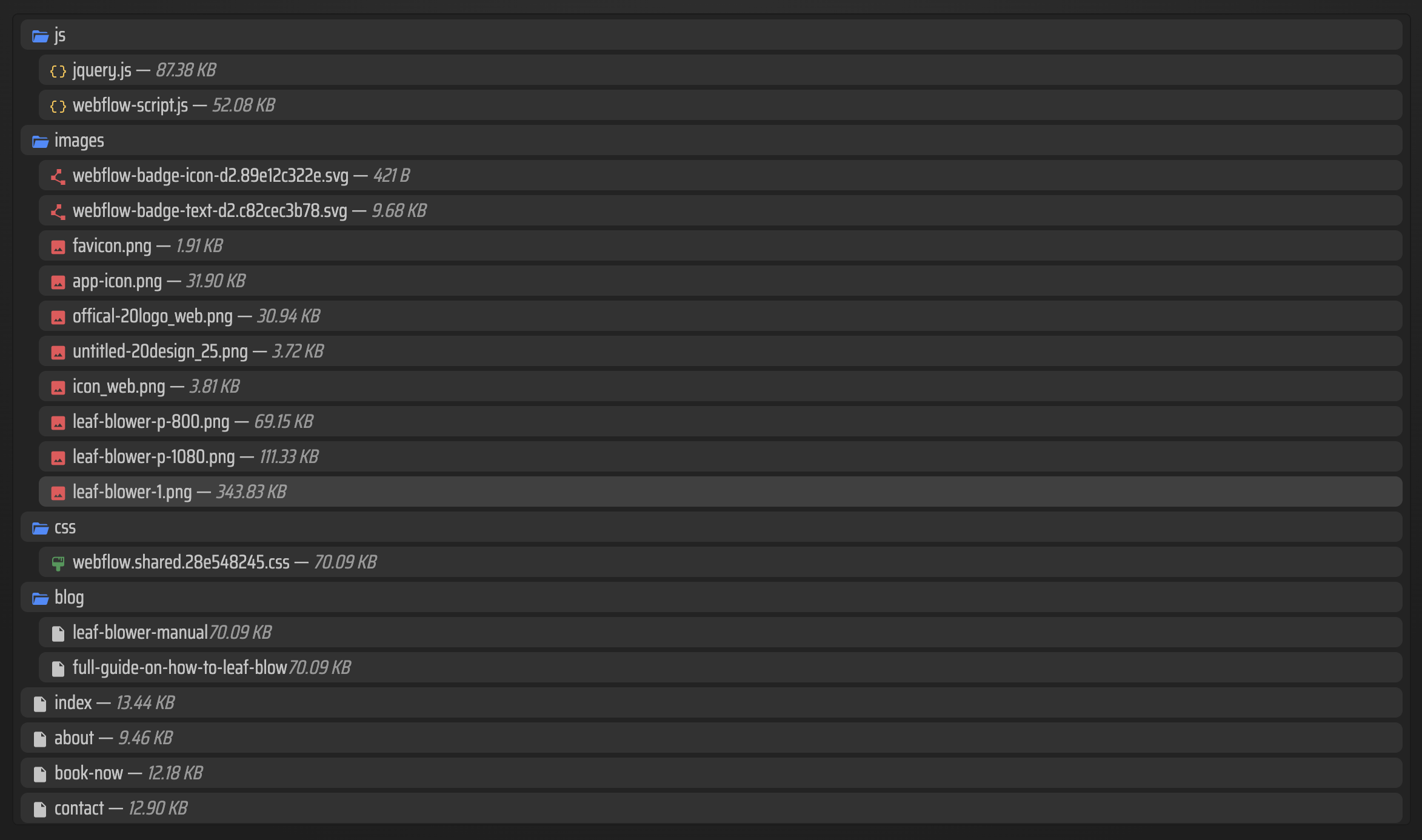
When the export finishes, check the file tree before you publish anything. The exported pages should be easy to spot, the asset folders should line up with the site structure, and any custom files you added should be present in the output.
How To Host the Exported Framer Site

After the export, you have a few good hosting options. ExFlow can host the site on its own servers, or you can push the static files to the platform you already use.
- Built-in hosting: useful when you want the fastest path from export to live site.
- Git sync: best when your workflow already depends on version control and deployment pipelines.
- S3 sync: a practical fit for simple static hosting on AWS.
- FTP sync: handy if you still deploy to a traditional web server.
ExFlow also supports hosting status and unlimited bandwidth on the hosting side, which makes it easier to keep a static export live without overthinking the delivery layer. If you need a custom domain, that can fit into the hosting setup as well.
What To Check Before You Go Live

Before you publish, verify the practical details that determine whether the export is actually usable:
- Each key page should load as a normal HTML file.
- CSS and JavaScript should be present where you expect them.
- Images and media should resolve correctly in the exported folder structure.
- Any custom code you added should still work in the exported version.
- If you removed the Made with Framer badge, confirm that it is gone before launch.
If your site is large or you need more advanced sync and hosting features, choose the plan that matches your export size, page count, and workflow requirements. The point is not to overbuy; it is to pick the level that fits the site you actually need to move.
Related Guides
If you are comparing similar export workflows, these recent guides show the same self-hosting pattern on other builders and Framer variants:
- How to Export a Framer Site and Host It Yourself with ExFlow
- How to Export a Framer Site to Static HTML and Self-Host It
- How to Download a Webflow Site and Host It Yourself with ExFlow
- Squarespace to HTML: A Practical Export and Self-Hosting Checklist
Final Takeaway
If you want the Framer design but need ownership of the files, ExFlow gives you a direct path from URL to static export. Start with one Framer site URL, export all pages, inspect the file tree, and then choose the hosting target that matches your stack. The fastest next step is to test your site on ExFlow.site and see how cleanly it exports.

Comments
Post a Comment