How to Self-Host a Webflow Site With Git, S3, or FTP
TL;DR: if you want versioned deploys, pick Git. If you want the cheapest static setup, pick S3. If you still hand files to a traditional server, use FTP. If you want the shortest path, ExFlow can export the Webflow site and host or sync it for you.
I keep seeing the same pattern: a Webflow site grows past the point where the original hosting setup is the best fit, but nobody wants to rebuild the design from scratch. The clean move is usually not a redesign. It is a controlled export, a clear destination, and one round of testing before you switch traffic over.
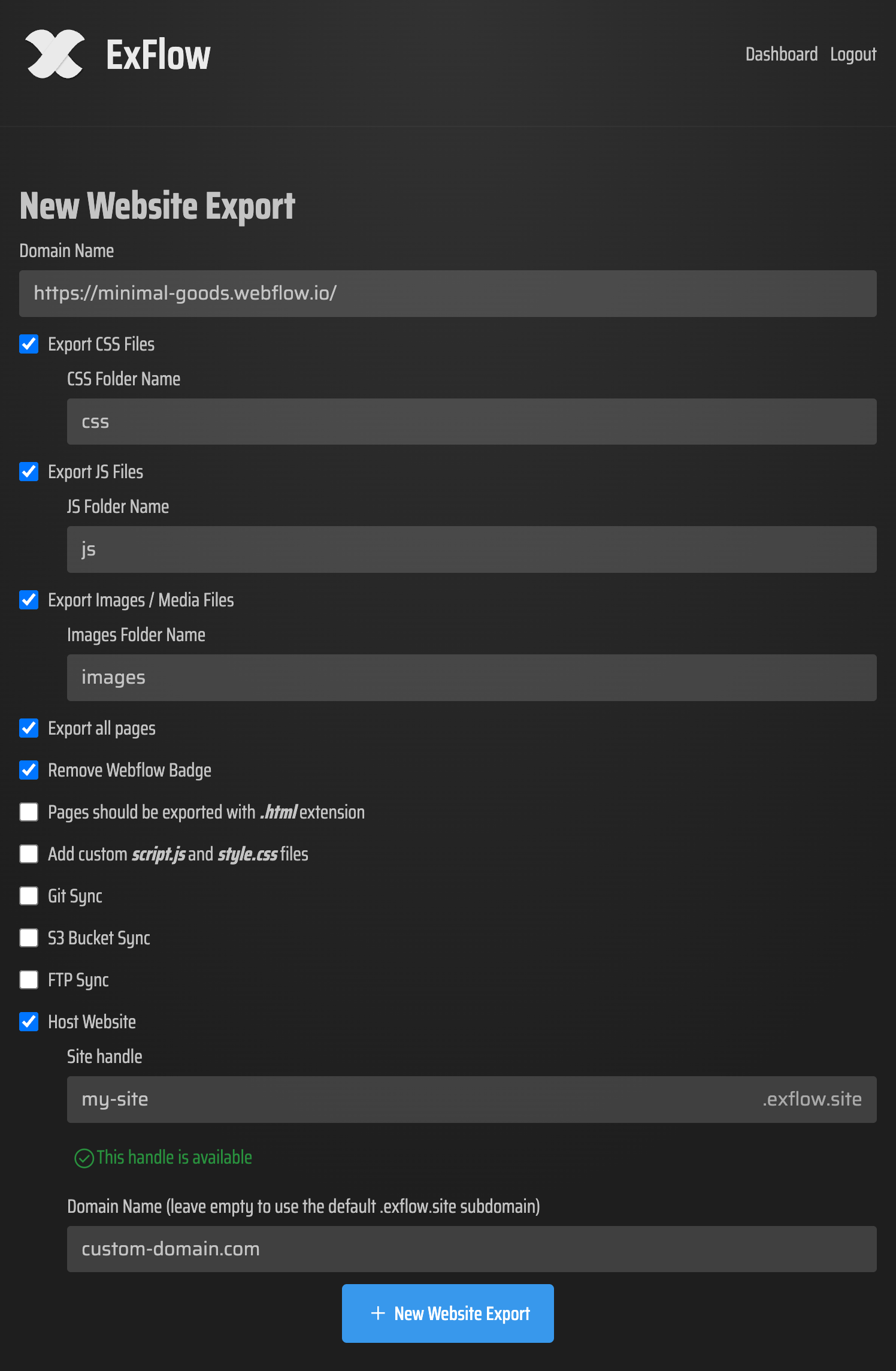
What a Webflow export actually gives you
Webflow export gives you the front-end bundle: HTML, CSS, JavaScript, and assets. That is enough to run a static site. It is not enough to keep every Webflow-specific feature alive. CMS-driven content, user accounts, ecommerce, localized pages, forms, and search are the pieces you need to plan around before you leave the platform.
That is why a generic "download and hope" approach usually breaks down. The export itself is only the first step. The real decision is where the exported site should live and how much ongoing editing the team still needs.

When self-hosting makes sense
Self-hosting is worth it when you want one of these things:
- Lower monthly hosting cost for a site that is mostly static.
- More control over deployment, version history, and rollback.
- A simpler handoff for a developer or agency that already works from Git or object storage.
- A way to keep the visual design while moving to infrastructure you already own.
If the site depends heavily on Webflow CMS interactions, forms, or localized content, slow down and test the export path on a staging copy first. A good rule is to decide on the destination before you decide on the migration date.
How to choose the right destination
There are four common targets, and each one makes sense for a different kind of team.
Git: best for teams that want repeatable deploys
Choose Git if you want the exported site to behave like code. This is the best option when multiple people touch the site, when you want pull requests or review gates, or when you need a paper trail for every change. It is the most disciplined choice, and it is usually the easiest to reason about six months later.
Use this when your main concern is control, not convenience. If that is your situation, the export-first workflow in How I Export a Webflow CMS Site to Static HTML Without Rebuilding It is the closest companion read.
S3: best for simple static hosting at low cost
Choose S3 when you want the file bucket, CDN-friendly hosting, and a very small amount of ongoing maintenance. This is the cleanest option for a brochure site, a landing page, or a marketing site that mostly changes in batches instead of daily. It is also a good fit if your ops stack already lives in AWS.
If you are deciding whether the move is even worth it, compare it with How I Self-Host a Webflow Site After Exporting CMS Content. That one is more about the hosting side once the export is done.
FTP: best for legacy servers and old handoff patterns
Choose FTP when the destination is an existing host that still expects a file drop. I would not pick it as my first choice for a modern stack, but it is still the right answer in client handoffs and older shared hosting environments where "upload the files" is the workflow everybody already understands.
This is the same handoff logic you see in How To Move A Framer Site To Git, S3, Or FTP: the host is less important than the process you can actually keep using.
Hosted by ExFlow: best when you want the shortest path
Choose ExFlow hosting when you do not want to assemble the rest of the stack yourself. ExFlow is built as a Webflow exporter, and it can also sync to Git, S3, or FTP if you want the exported site to land somewhere else. That makes it useful both as a migration tool and as a simple way to keep the site live after export.

What I would do on a real migration
- Export one representative page first, not the entire site.
- Check that images, CSS, JavaScript, and page links render the way you expect.
- Decide whether the team wants version control, object storage, a legacy server, or hosted delivery.
- Point the exported copy at a staging domain and test the pages that matter most.
- Only switch production after you have confirmed the layout, navigation, and asset paths.
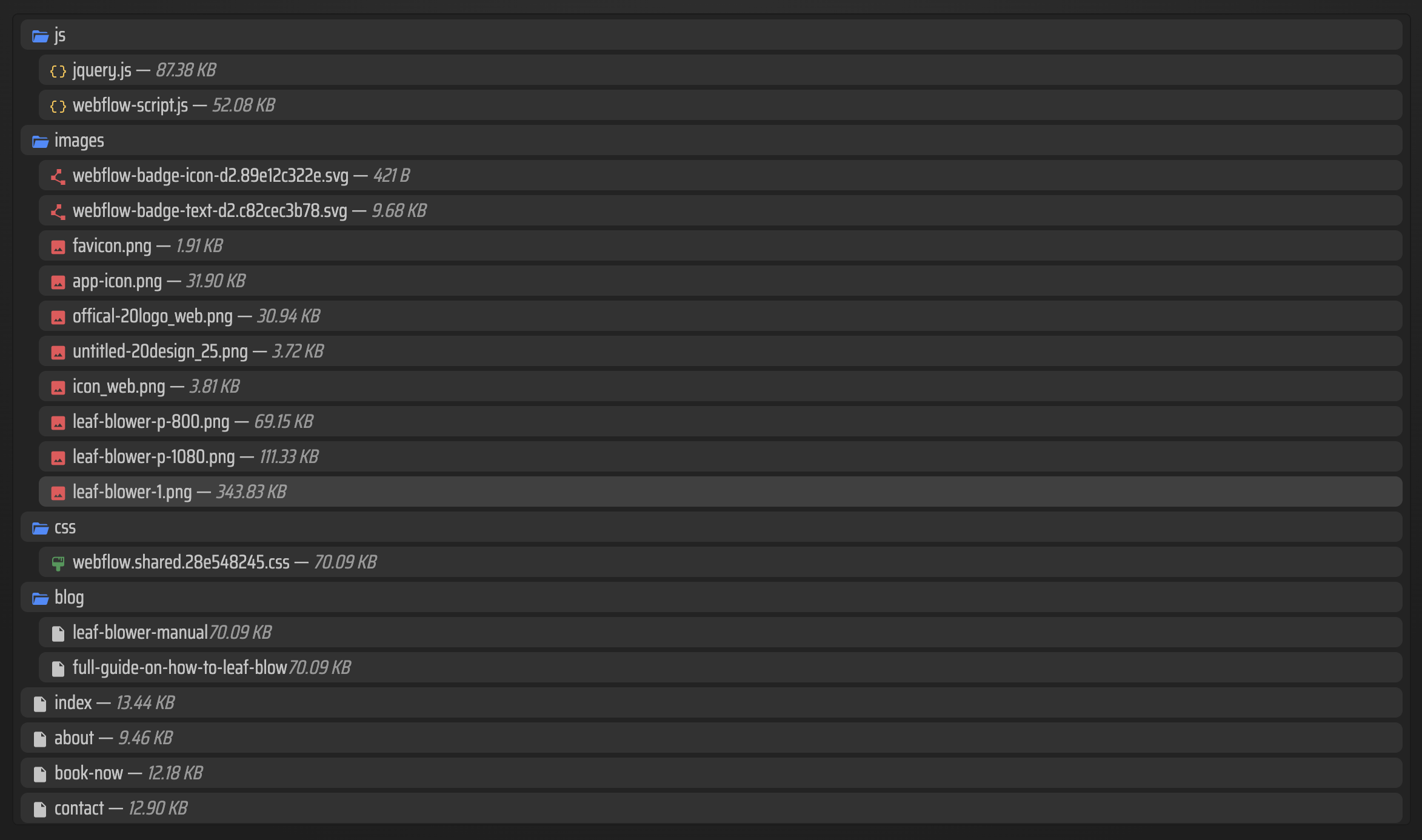
Where ExFlow fits
ExFlow matters because it gives you the export path without forcing a rebuild. That is the practical difference between "we can technically export" and "we can actually move the site." If you are trying to reduce hosting cost, simplify maintenance, or keep a Webflow project portable, that gap matters.
The tool is most useful when you want a static copy of the site, the option to remove the Webflow badge, and a path to sync the exported files to Git, S3, FTP, or hosted delivery. It is the bridge between a design tool and an infrastructure choice.
If your team wants a repeatable workflow instead of a one-time rescue, start with a small site, export it, and choose the destination that matches your maintenance habits. That is the cleanest way to see whether the move actually saves time instead of just moving the work around.
Next step: try ExFlow on one Webflow project, export a staging copy, and choose the simplest destination that still matches your workflow.
If you want more context on adjacent migrations, these earlier notes are worth a look: How I Decide When a Webflow Site Is Ready for Static Hosting and How to Export a Webflow Site to Static HTML.

Comments
Post a Comment