Suspicious Business Email Triage: Check the Header Before the Attachment

A suspicious invoice, password-reset notice, or shared document does not need an immediate click. The safest first move is to inspect the message header, then choose one of three outcomes: delete it, report it, or verify the request through a known channel. That will not prove an email safe, but it turns a rushed guess into a repeatable triage step.
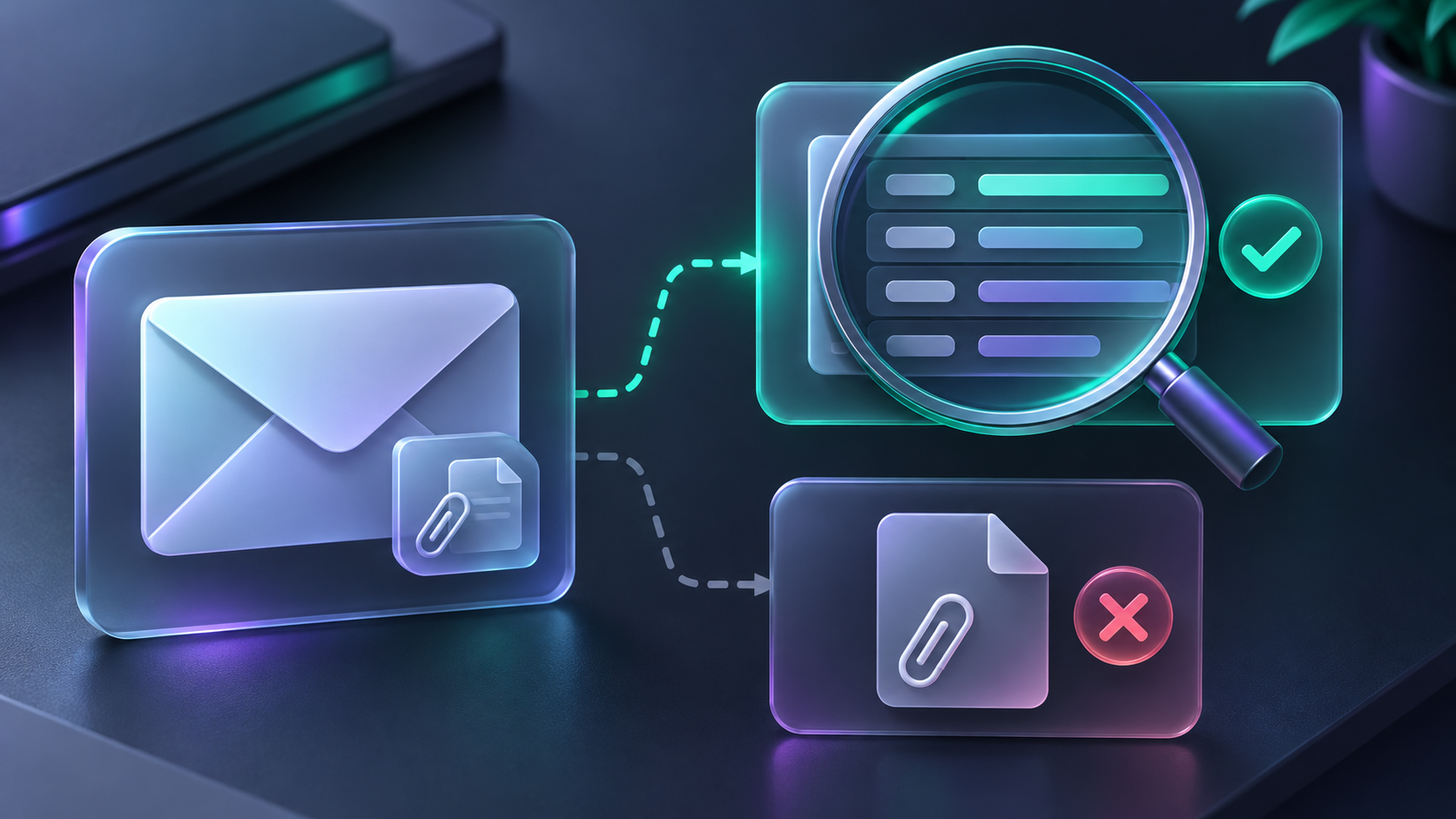
For a quick first pass, Tiny Online Tools’ Email Header Analyzer reads a pasted header locally in the browser. It highlights the route a message took and the authentication results the receiving server recorded—without asking you to upload the message body or attachment.
Why start with the header?
A sender display name is easy to imitate, and an attachment is where a routine-looking message can become an incident. The header is not a magic authenticity certificate, but it gives you useful evidence before you touch the risky part of the message.
In Gmail, use Show original and copy the header block. In Outlook, look for Properties and Internet headers. Paste only the header—the content above the first blank line—into the analyzer. Its guidance is refreshingly clear: it reads existing `Authentication-Results`; it does not perform a fresh DNS verification.
That distinction matters. Treat the result as a decision aid, not an all-clear signal.
The 90-second business-email triage
Use this sequence whenever a message asks for money, credentials, an urgent document review, or a login.
1. Pause before opening the attachment or link. If the request is legitimate, a short verification delay is cheaper than an account recovery or payment reversal.
2. Compare the visible sender with the address and domain. A familiar display name paired with an unfamiliar domain is enough to stop and investigate.
3. Inspect the received route and final authentication record. The newest `Received:` lines are the infrastructure closest to your mail system. Earlier lines can be forged, so do not treat a long route as proof by itself.
4. Check alignment, not just a green word. A recorded SPF pass for one domain does not automatically validate the domain shown in `From:`. DMARC alignment is the useful comparison: the authenticated SPF or DKIM domain should match the visible sender domain.
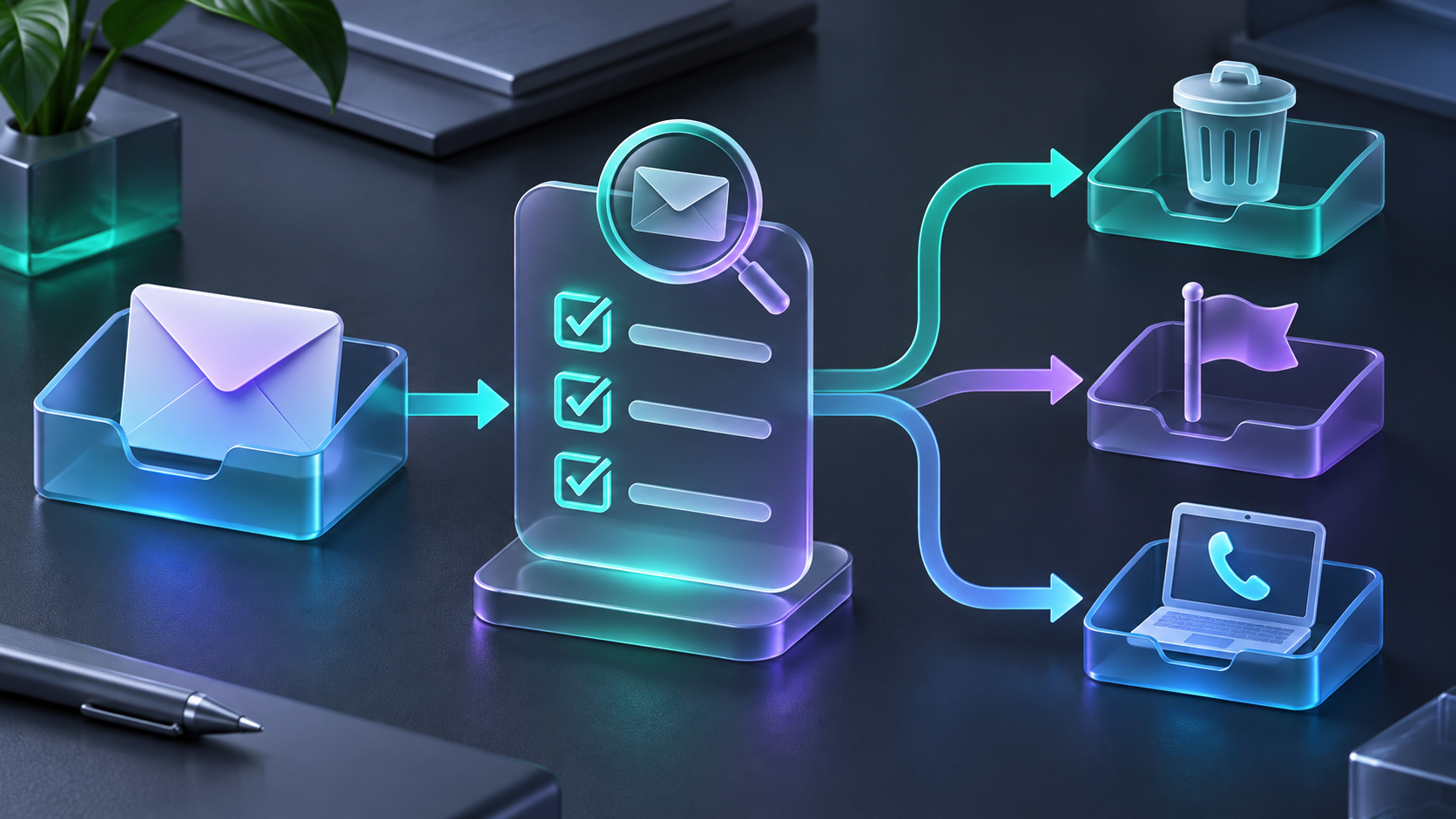
5. Choose an outcome before going back to the inbox. Delete obvious junk; report a credible impersonation attempt; or verify a plausible request through a number, address, or ticket portal you already trust.

What SPF, DKIM, and DMARC actually change
These acronyms are easy to overread, so keep the interpretation practical.
| Signal | Useful question | What it does not prove |
| --- | --- | --- |
| SPF | Was the sending server authorized for the envelope sender’s domain? | That the visible `From:` identity is genuine |
| DKIM | Did a domain-signed message survive in the form the receiver evaluated? | That the signer is the organization you expected |
| DMARC | Does the visible `From:` domain align with a passing SPF or DKIM identity? | That the request, attachment, or payment details are safe |
A pass is a positive signal; a mismatch, failure, or missing record is a reason to slow down. Neither result replaces independent verification for a payment-change request or a credential prompt.
If you received a saved `.eml` or `.msg` rather than a live email, the companion Email File Viewer can open those formats in-browser. Its remote images are disabled by default, which avoids contacting sender-controlled image servers just to preview a message.
A three-outcome decision card for your team
The goal is not to become an email forensic analyst. It is to avoid creating a fourth, bad outcome: opening a file just to find out whether you should have checked first.
| If you see this | Do this next |
| --- | --- |
| Obvious mismatch, strange route, or unrelated sender domain | Delete or use your mail client’s phishing-report action |
| A known vendor or colleague, but changed payment details or unexpected urgency | Contact them using a previously saved phone number, portal, or address—never the message’s reply link |
| A saved message supplied for review | Inspect the header and file structure first; preserve the original if your security team needs it |
For similar low-risk inspection habits, bookmark our guide on opening unknown file headers before you open the file. If a ticket or legal request includes saved correspondence, this walkthrough on reconstructing EML and MSG conversations is a helpful next step. And when the suspicious message is really an unexpected meeting invite, the same pause-first mindset applies to inspecting an ICS calendar file before importing it.
Keep the evidence, but do not overinterpret it
For an internal report, capture the sender address, subject, time received, and the relevant header results. Do not forward a suspicious email broadly; use your organization’s reporting route where one exists. If there is a real possibility of account compromise, payment fraud, or malware, follow the company incident process rather than continuing to inspect the attachment.
A header review is particularly useful because it is bounded: you can collect enough context to make a safer next decision without turning every questionable message into a deep investigation. It also fits the same practical pattern as checking a suspicious email before opening its attachment: inspect first, act second.
Make the safer first step easy
Bookmark the Email Header Analyzer and write the three outcomes—delete, report, verify—into your team’s email-security checklist. The next time an urgent attachment lands in the inbox, you will have a calm, fast way to decide what deserves attention and what does not.

Comments
Post a Comment